
Latest features
Track Tagged Steps in the Dashboard
Track Tagged Steps in the Dashboard
Released October 10, 2025
Dashboard items can now track steps by tag—not just runs. If you’re tagging work as urgent, you can surface those tagged steps right on your dashboard for a faster, clearer view of what needs attention.
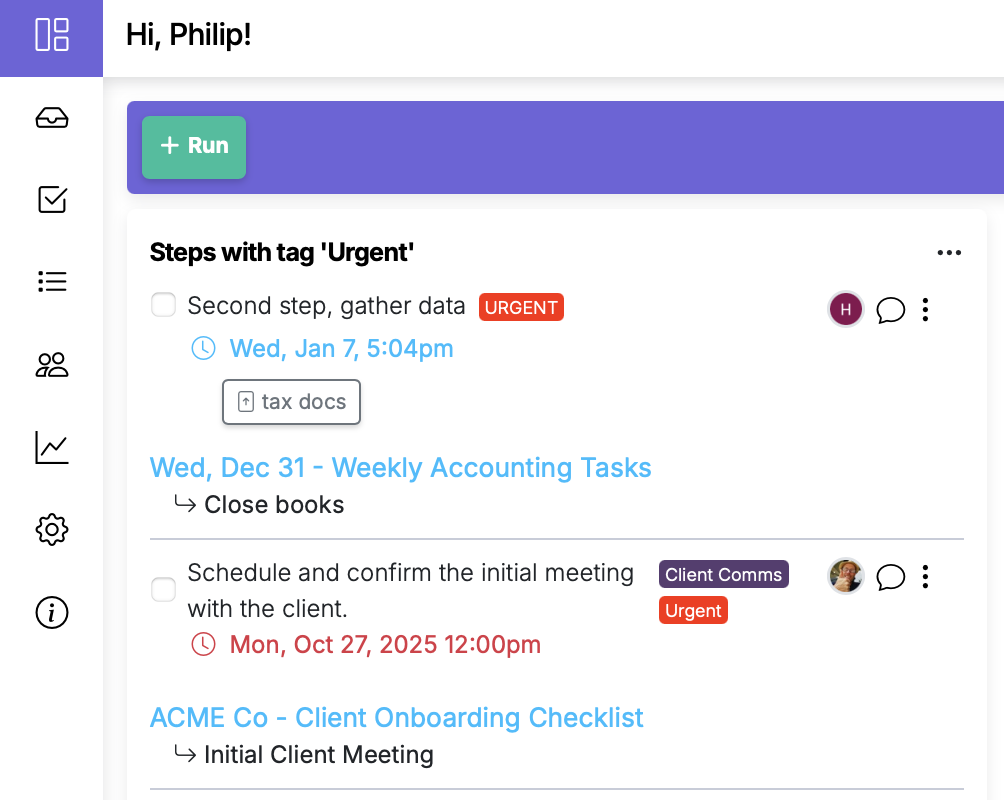
Manifestly dashboard items have long been able to show runs with a specific tag. Now, you can also create dashboard items that show steps with a specific tag.
In this example, we’ve tagged both runs and steps with the tag urgent. The new dashboard item is configured to display any steps marked urgent across your runs.
How to create a dashboard item that tracks steps by tag
- Open the Dashboard Item Editor.
- Select Steps as the item type.
- Near the bottom, choose the tag you want to track (for example,
urgent). - Save your dashboard item.
How to tag a step inside a run
You can tag steps in multiple ways:
- Right-click the step, then choose (or add) the tag you want (e.g.,
urgent). - Use the step menu on the right side of the step near the comment bubble, then select your tag.
Track Tagged Steps in the Dashboard is live in every account
Open Manifestly to try it, or book a walkthrough with our team.