
New Feature: Choose Which Runs to Update After Workflow Changes
January 06, 2026
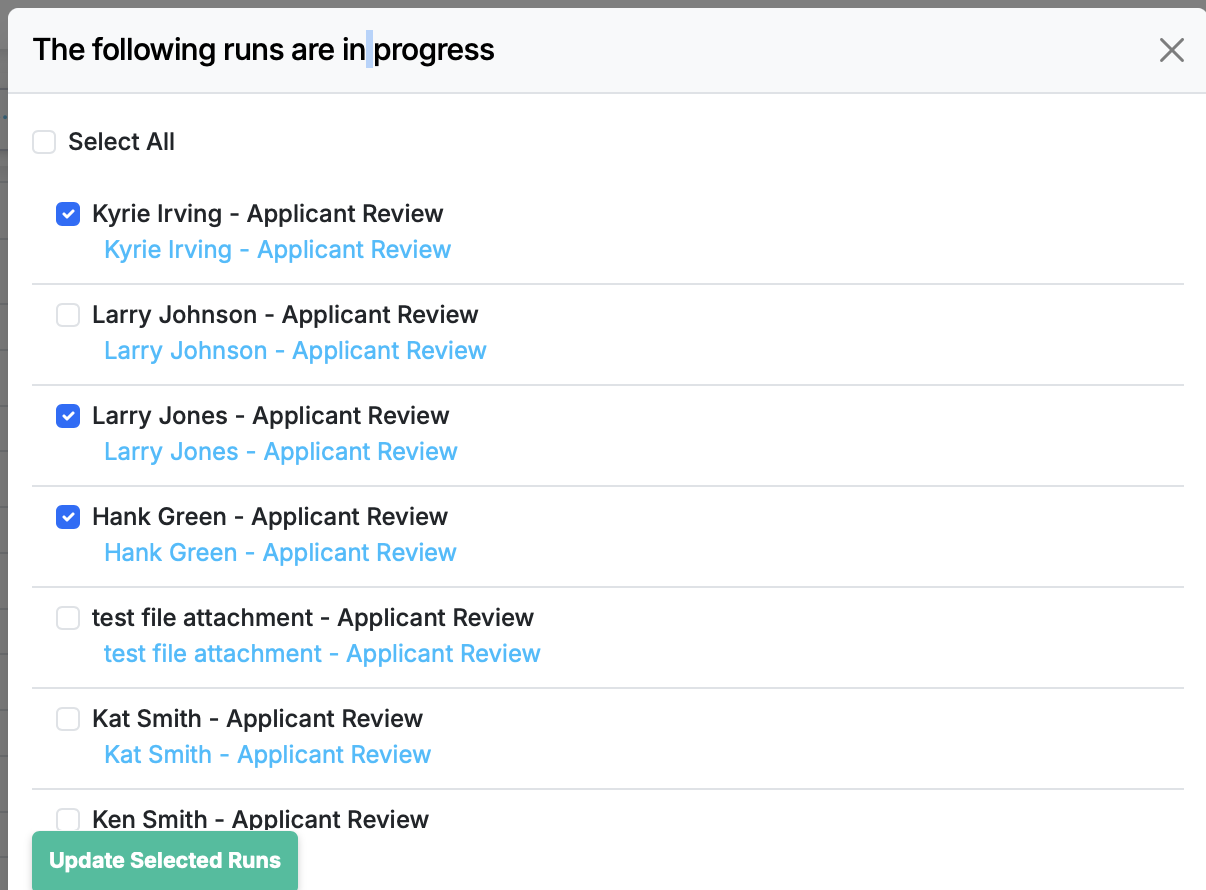
The Update Runs dialog now lets you select exactly which runs receive your workflow changes — so you can test on a few runs first or skip runs that are nearly complete.
When you edit a workflow, you often want those changes reflected on runs that are already in progress. Previously, clicking Update Runs pushed the changes to every eligible run at once. That works fine when every run is in the same state, but it's less than ideal when some runs are nearly finished or when you'd rather test your edits on a subset first.
What changed
The Update Runs modal now shows each eligible run with a checkbox. You decide which ones get updated:
- Each eligible run is listed individually with a checkbox.
- Use Select All to quickly check or uncheck the entire list.
- Only the runs you select will be updated when you submit.
When this helps
- Testing changes safely — push updates to one or two runs first, confirm everything looks right, then update the rest.
- Avoiding disruption — skip runs that are near completion where changes would cause confusion.
- Targeted rollouts — apply a workflow change only to runs in a specific department or for a specific client.
How it works
- Edit your workflow and save.
- Click Update Runs when prompted.
- In the modal, check the runs you want to update (or use Select All).
- Submit — only the selected runs are updated.
This is a small change in the UI but a meaningful improvement in control. See the full feature details for a walkthrough.
Table of Contents