
How to Connect Claude to Manifestly Using MCP
June 26, 2026

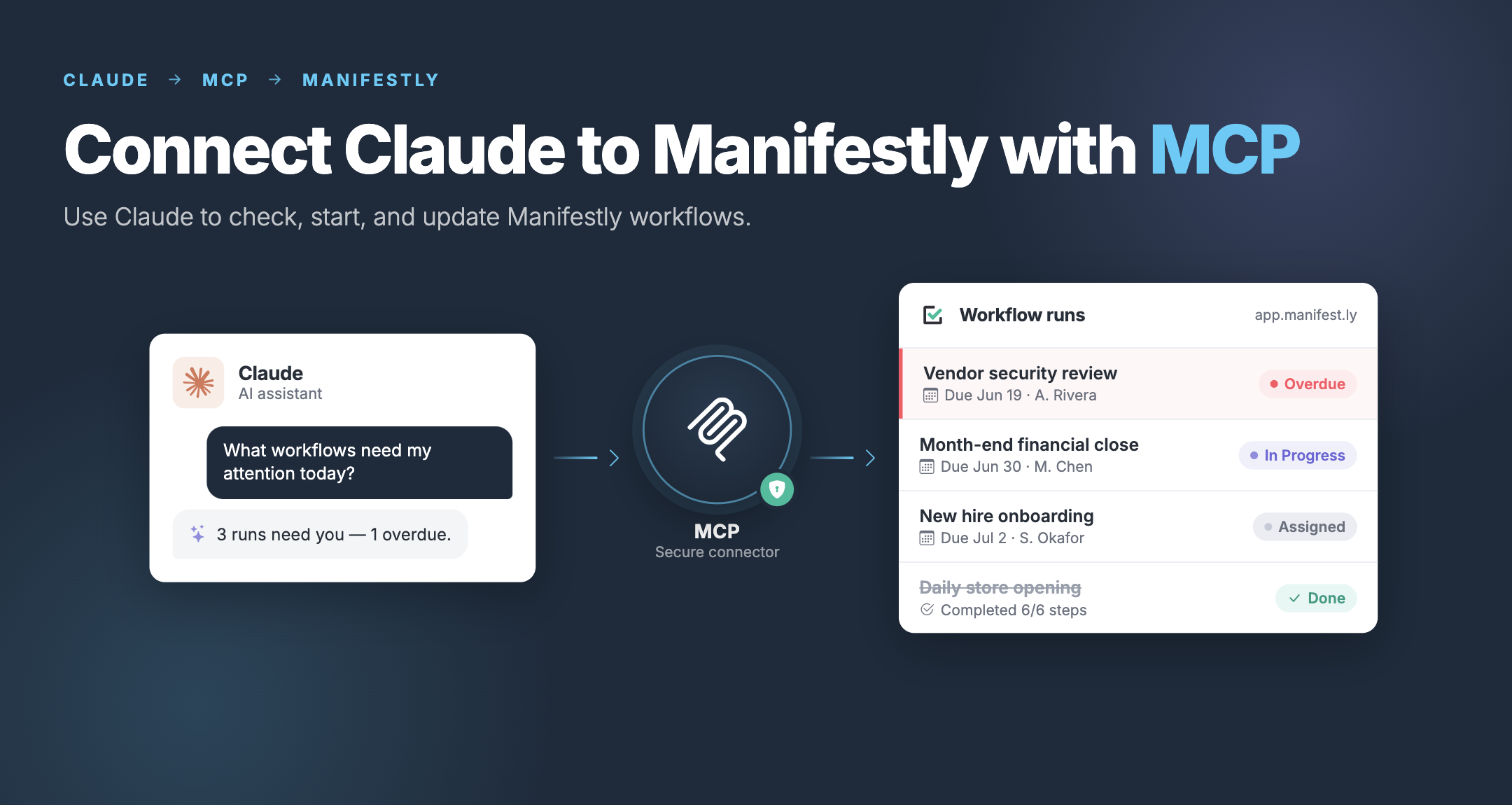
Claude can do more than answer questions about your work. With Manifestly's MCP integration, Claude can connect directly to your Manifestly workflows so you can check overdue work, start workflow runs, complete steps, assign tasks, update fields, and leave comments from a conversation.
This guide walks through how to connect Claude to Manifestly using MCP, how to test the connection, and how to try it with one real recurring workflow.
The goal is simple: get from setup to your first useful workflow action as quickly as possible.
Quick Answer: How to Connect Claude to Manifestly
To connect Claude to Manifestly, add Manifestly's MCP server to Claude or another MCP-compatible client, authenticate with your Manifestly account, and authorize access.
Once connected, Claude can interact with Manifestly based on your existing user permissions. You can ask Claude to check overdue workflow runs, start a run from a template, complete or skip steps, assign work, add comments, fill in fields, and review workflow status.
Manifestly remains the system of record for your workflows. Claude becomes a natural-language way to interact with the work.
What You Can Do After Connecting Claude to Manifestly
After the MCP integration is connected, you can use Claude to manage recurring work without opening Manifestly every time you need an update or action.
For example, you can ask Claude to:
- Show overdue workflow runs
- List your open assignments
- Start a workflow run from an existing template
- Check the status of an active workflow
- Complete or skip workflow steps
- Assign a step to a team member
- Set or update due dates
- Fill in data collection fields
- Add comments to workflow steps
- Browse workflows, runs, departments, and users
- Help draft, validate, or import new workflow templates
That means Claude can help you move from conversation to execution.
Instead of asking someone, "Where are we with onboarding?" you can ask Claude.
Instead of opening a checklist, finding the right template, and manually starting a run, you can ask Claude to start it.
Instead of chasing status before a meeting, you can ask what is overdue and where work is stuck.
What You Need Before Getting Started
Before connecting Claude to Manifestly, make sure you have:
- A Manifestly account
- Access to Claude or another MCP-compatible client
- Permission to connect external integrations in your AI client
- Permission to access the Manifestly workflows you want Claude to use
- At least one workflow template you can test with
The last point matters. The best way to test the integration is with a real workflow your team already runs.
Choose something familiar, such as:
- New hire onboarding
- Customer onboarding
- Weekly operations review
- Compliance checklist
- Safety inspection
- Monthly close process
- IT access review
Start with one workflow. You can expand from there once you are confident the connection is working.
Manifestly MCP Setup Details
Use these details when adding Manifestly as a custom MCP connector.
| Setup item | Details |
|---|---|
| MCP server | Manifestly MCP server |
| Endpoint | mcp.manifest.ly |
| Full URL | https://mcp.manifest.ly |
| Transport | Streamable HTTP |
| Authentication | OAuth 2.1 |
| Supported clients | Claude, Claude Code, ChatGPT, Gemini, Cursor, and other MCP-compatible clients |
| Setup time | About 60 seconds |
Step 1: Open Claude and Go to Integrations or Connectors
Start by opening Claude and looking for the section where you manage integrations, connectors, or MCP servers.
The exact menu name may vary depending on your Claude plan, workspace, or client. In general, you are looking for a place where Claude lets you add a custom MCP connector.
Once you find that section, choose the option to add a new custom connector or MCP server.
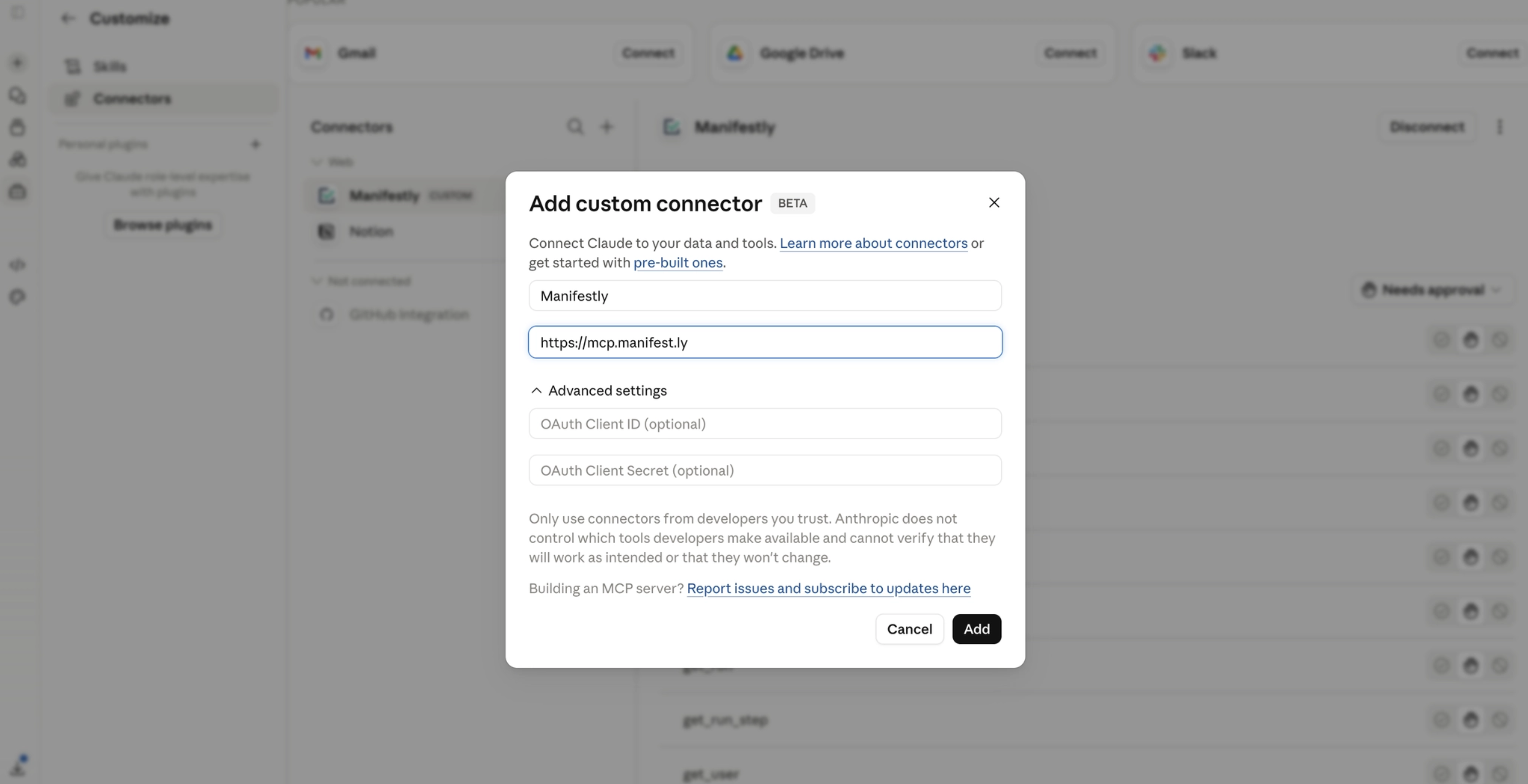
Step 2: Add the Manifestly MCP Server
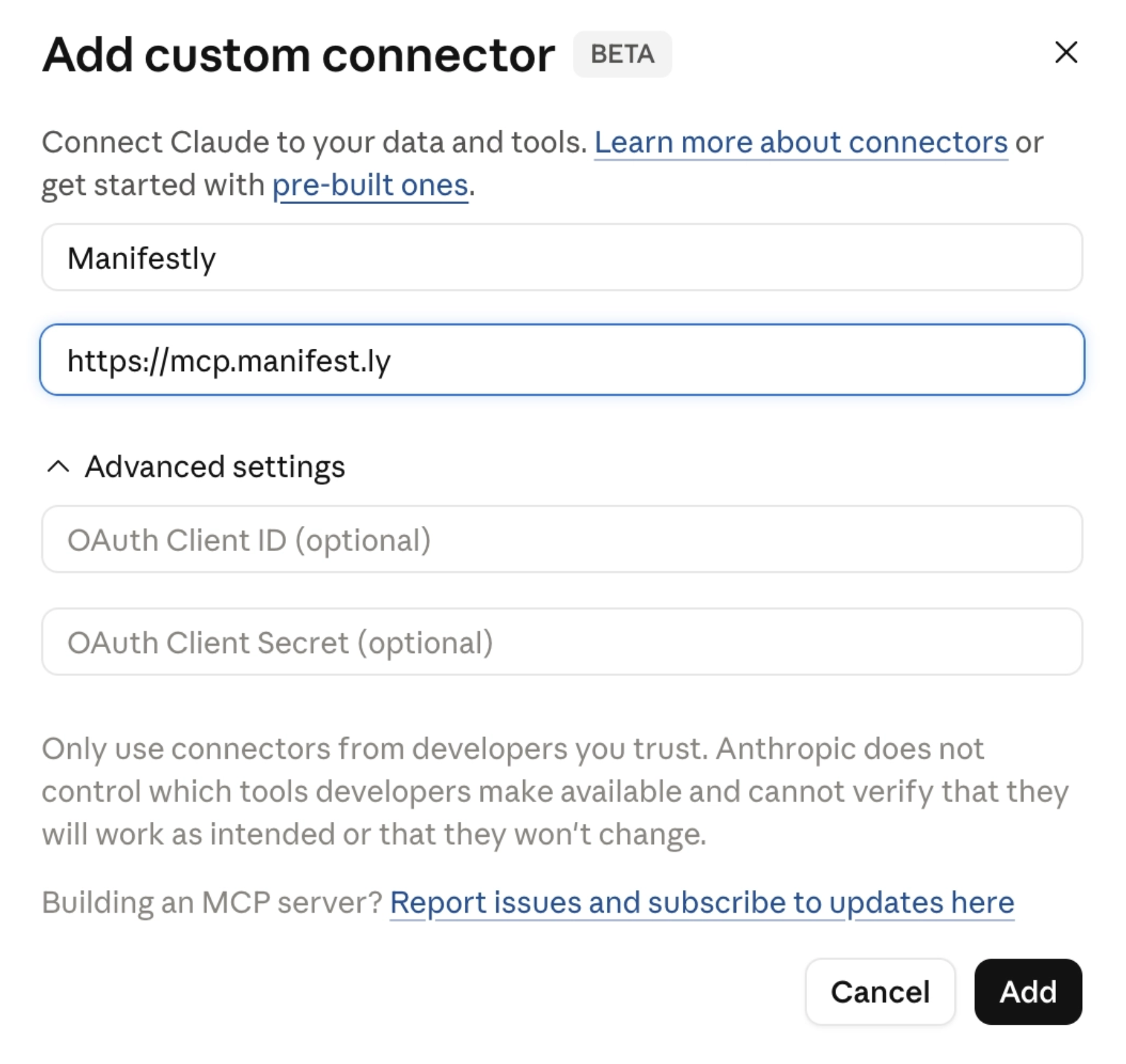
When Claude asks for the MCP server or connector URL, enter:
https://mcp.manifest.ly
Some clients may display or accept the endpoint as:
mcp.manifest.ly
Use the full URL if your client asks for a URL.
Name the connector something clear, such as:
Manifestly
or
Manifestly Workflows
This will make it easier to recognize later when you ask Claude to use your Manifestly workflows.
Step 3: Authenticate with Manifestly
After you add the Manifestly MCP server, Claude should prompt you to sign in to Manifestly.
Follow the authentication flow and log in with your Manifestly account.
Manifestly uses OAuth authentication, which means you do not need to copy and paste an API key into Claude. You sign in with your Manifestly account and approve the connection.
Once approved, Claude can interact with Manifestly using your existing permissions.
That means Claude can only see and do what your Manifestly user account is allowed to see and do.
If your account has access to a workflow, Claude can help you interact with it. If your account does not have access, Claude cannot access it either.
Step 4: Test the Connection
Once the connection is active, test it with a simple read-only prompt first.
Start with:
What Manifestly workflows can you see?
This helps confirm that Claude can access Manifestly and retrieve workflow information.
Then try:
Show me my overdue workflow assignments.
or:
What workflow runs need my attention today?
If Claude returns live workflow data from Manifestly, the connection is working.
After that, test a simple action with a workflow template you recognize:
Start a workflow run from the Weekly Operations Review template.
or:
Start the New Hire Onboarding workflow for Jamie Rivera.
The goal of this step is to confirm that Claude can not only read workflow data, but also help you take action in Manifestly.
Step 5: Try It With One Real Recurring Process
After testing the connection, use Claude with one recurring workflow your team already understands.
Do not start by trying to manage every workflow in your account. Pick one process where status, ownership, and repeatability matter.
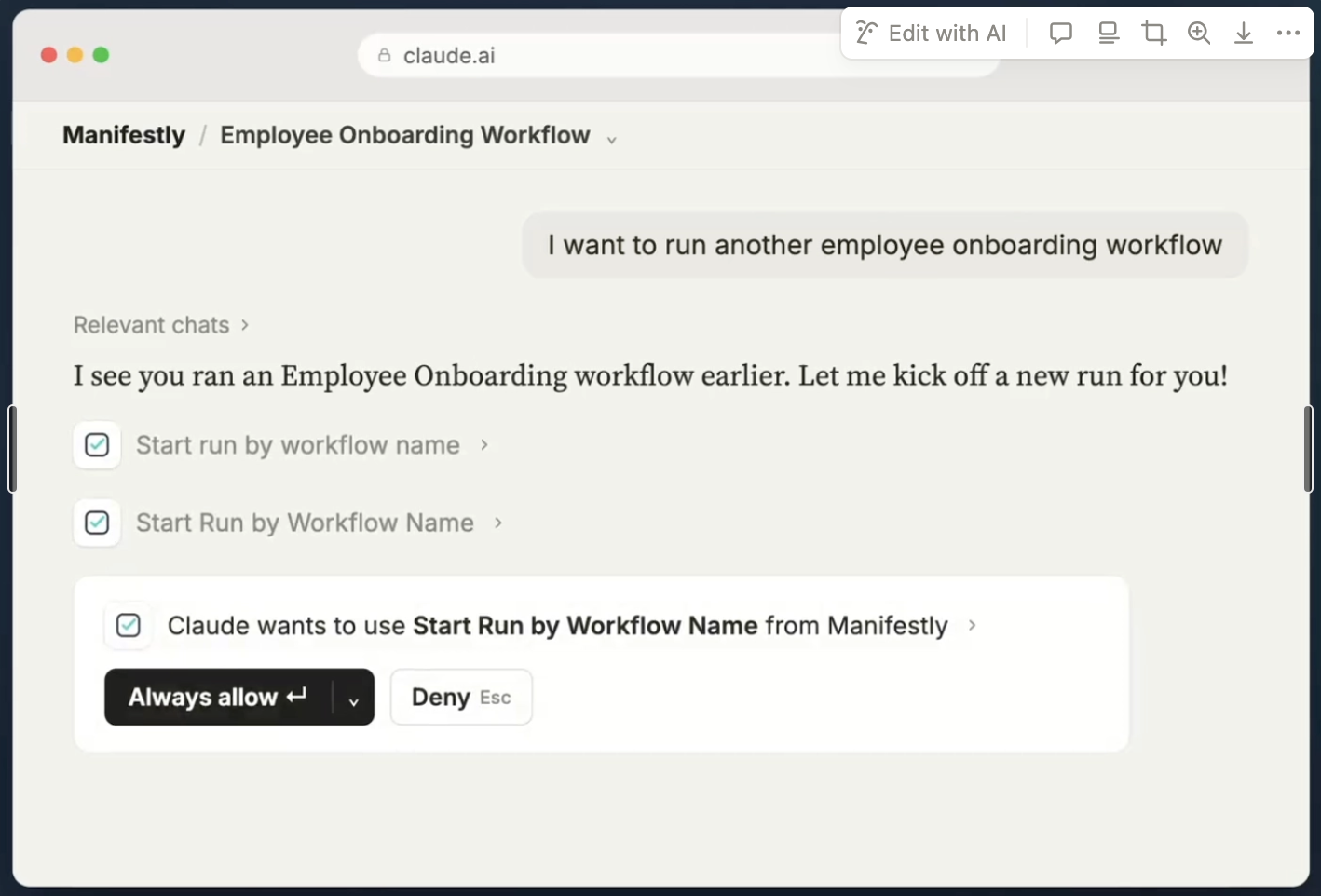
Here are a few good examples.
New Hire Onboarding
New hire onboarding is a strong first test because it usually involves multiple owners, clear deadlines, and several handoffs.
Try a prompt like:
Start the new hire onboarding workflow for Jamie Rivera. The start date is next Monday.
Then follow up with:
What are the next incomplete steps in Jamie Rivera's onboarding?
or:
Who owns the IT access setup step?
This helps you see how Claude can start the process, check status, and surface ownership.
Customer Onboarding
Customer onboarding is another good workflow to test because it often includes sales, success, implementation, and support handoffs.
Try:
Start the customer onboarding workflow for Acme.
Then ask:
What steps are currently incomplete in Acme's onboarding?
or:
Add a comment to the kickoff preparation step: Customer requested SSO setup before launch.
This helps your team move from customer conversation to tracked execution.
Weekly Operations Review
For an operations team, a weekly review can show the value of status visibility quickly.
Try:
Show me what is overdue in this week's operations review.
Then ask:
Summarize the incomplete steps and who owns each one.
This can help reduce the time spent manually collecting updates before a meeting.
Compliance Checklist
Compliance workflows are useful because they depend on clear records, comments, evidence, and completion history.
Try:
Find incomplete steps in the Q2 compliance review and summarize what still needs evidence.
Then ask:
Add a comment to the access review step: Waiting on final approval from IT.
This keeps important process context attached to the workflow instead of scattered across chat, email, or documents.
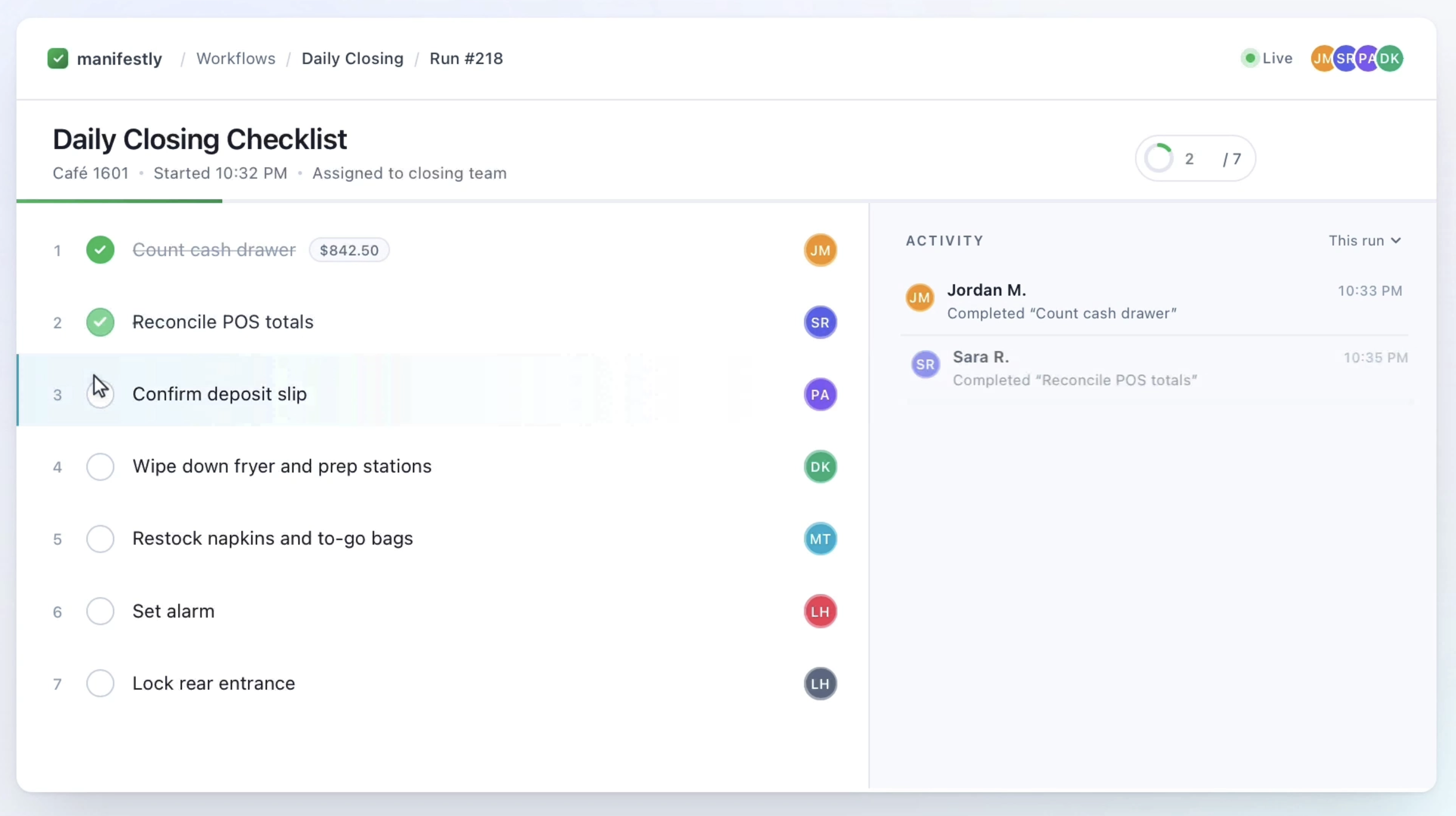
Step 6: Confirm the Work in Manifestly
After Claude takes an action, open Manifestly and confirm that the update happened correctly.
Check that:
- The workflow run was created
- The correct workflow template was used
- The right owner was assigned
- Due dates are accurate
- Comments were added to the right step
- Fields were filled in correctly
- Completed or skipped steps were updated as expected
This is especially important during early testing.
Claude is the interface. Manifestly is the workflow system of record.
For important workflows, you should verify changes in Manifestly until your team is comfortable with the integration.
Troubleshooting Common Issues
If something does not work as expected, start with these common issues.
Why Can't Claude See My Manifestly Workflows?
If Claude cannot see your workflows, check the following:
- Are you signed in to the correct Manifestly account?
- Did you complete the OAuth authorization flow?
- Does your Manifestly user have access to the workflow?
- Is the workflow in a department or area your user can access?
- Are you using the correct workflow name?
- Does the MCP connection need to be reconnected?
A good test prompt is:
What Manifestly workflows can you see?
If Claude returns no workflows or the wrong workflows, the issue may be account access, permissions, or authentication.
Why Can't Claude Start a Workflow Run?
If Claude can see workflows but cannot start a run, check:
- Does your Manifestly user have permission to start runs from that template?
- Are you using the exact workflow template name?
- Are required fields missing?
- Is the workflow active and available to your user?
- Has your MCP connection expired?
Try asking Claude:
What information do you need to start this workflow run?
This can help identify missing fields or unclear instructions.
Why Is Claude Showing Fewer Workflows Than Expected?
Claude can only access what your authenticated Manifestly user can access.
If workflows are missing, they may belong to a department, team, or account area outside your permission scope.
Check your Manifestly permissions or ask an admin to confirm that you have access to the workflows you want Claude to use.
What Should I Do If Authentication Fails?
If authentication fails:
- Sign out and reconnect the Manifestly MCP connector.
- Confirm you are using the correct Manifestly account.
- Check whether your organization allows external integrations.
- Ask a Manifestly admin to confirm your permissions.
- Try adding the connector again using
https://mcp.manifest.ly.
Why Did Claude Update the Wrong Workflow or Step?
This can happen if workflow names, run names, or step names are unclear.
To reduce confusion:
- Use specific workflow names
- Include the customer, employee, or process name in the prompt
- Ask Claude to confirm the workflow before making a change
- Review the update in Manifestly afterward
For example, instead of saying:
Start onboarding.
Say:
Start the Customer Onboarding workflow for Acme Corporation.
Specific prompts help Claude choose the right workflow and action.
Best Practices for Using Claude with Manifestly
Once the integration is connected, these practices will help your team get better results.
Start With One Workflow
Choose one recurring workflow your team already understands.
Good starting points include onboarding, weekly reviews, compliance checks, or recurring operations checklists.
Do not try to roll this out across every workflow on day one. Start small, learn how Claude interacts with Manifestly, then expand.
Use Clear Workflow Names
Claude will be more useful when your workflows have clear, specific names.
Use names like:
- New Hire Onboarding
- Customer Onboarding
- Weekly Operations Review
- Monthly Compliance Review
- Store Opening Checklist
- IT Access Review
Avoid vague names like:
- Checklist 1
- Operations
- Review
- Process Template
Clear workflow names make it easier for Claude and your team to find the right process.
Keep Owners and Due Dates Updated
Claude can surface overdue work, summarize status, and identify stuck handoffs.
But those answers are only useful if the workflow structure is accurate.
Make sure your Manifestly workflows have:
- Assigned owners
- Clear due dates
- Updated workflow steps
- Current users and departments
- Accurate workflow templates
AI works best when the system underneath it is clean.
Use Claude for Visibility First
Before using Claude to take actions, start with visibility prompts.
What needs my attention today?
What workflow runs are overdue?
Which onboarding workflows are still incomplete?
Who owns the next step in the Acme onboarding workflow?
This helps your team build trust in the connection before using Claude to complete steps, assign work, or update fields.
Ask Claude to Confirm Before Important Actions
For sensitive workflows, ask Claude to confirm the target workflow and action before updating anything.
For example:
Find the Q2 compliance review workflow and confirm the incomplete evidence steps before adding comments.
or:
Before starting a new run, confirm which customer onboarding template you plan to use.
This adds a review step before changes are made.
Verify Important Changes in Manifestly
During early use, check Manifestly after Claude takes action.
Confirm that the right workflow was updated, the right person was assigned, and the completion record looks correct.
This is especially important for compliance reviews, customer onboarding, access reviews, and other workflows where accuracy matters.
Treat Manifestly as the System of Record
Claude is the interface.
Manifestly is where the workflow lives.
That means recurring processes should still be built, structured, assigned, scheduled, and tracked in Manifestly. Claude makes those workflows easier to access and update, but Manifestly remains the source of truth for the work.
Frequently Asked Questions
How do I connect Claude to Manifestly?
Add Manifestly as a custom MCP connector in Claude using the Manifestly MCP server URL, then authenticate with your Manifestly account. After authorization, Claude can interact with your Manifestly workflows based on your existing permissions.
What is the Manifestly MCP server?
The Manifestly MCP server connects MCP-compatible AI assistants to your Manifestly workflows. It allows assistants like Claude to read workflow data, start runs, complete steps, assign work, update fields, add comments, and help manage recurring workflows.
What is the Manifestly MCP endpoint?
The Manifestly MCP endpoint is:
mcp.manifest.ly
If your client asks for a full URL, use:
https://mcp.manifest.ly
What can Claude do after connecting to Manifestly?
Claude can help check overdue work, start workflow runs, complete or skip steps, assign work, fill in fields, add comments, review workflow status, and help manage recurring operational processes.
Does Claude use my Manifestly permissions?
Yes. Claude interacts with Manifestly through the authenticated user's account. That means Claude can only access workflows and actions allowed by that user's Manifestly permissions.
Can I use Manifestly MCP with ChatGPT or other AI assistants?
Yes. Manifestly's MCP server is designed for MCP-compatible clients, including Claude, Claude Code, ChatGPT, Gemini, Cursor, and other tools that support MCP.
What should I ask Claude first?
Start with a simple visibility prompt:
What Manifestly workflows can you see?
Then try:
Show me my overdue workflow assignments.
Once you confirm the connection works, try starting a workflow run from a template you already use.
Should Claude replace working in Manifestly?
No. Claude gives you a conversational way to interact with Manifestly, but Manifestly remains the system of record for workflows, assignments, due dates, comments, fields, and completion history.
What is the best workflow to test first?
Start with a recurring workflow your team already understands, such as new hire onboarding, customer onboarding, weekly operations review, compliance review, or an operations checklist.
Set Up MCP and Try One Workflow
The best way to understand the Manifestly MCP integration is to try it with one real workflow.
Connect Claude to Manifestly.
Ask what is overdue.
Start a workflow run from a template.
Check where the process is stuck.
Then open Manifestly and confirm that the work is assigned, visible, and tracked.
Start with one recurring process your team already runs every week. Once that works, expand from there.
Learn more at manifest.ly/ai-integrations/claude